
LMS For Companies
Session Scheduling That Replaces Your
Training Spreadsheet
SimpliTrain gives L&D teams a purpose-built session scheduling system for instructor-led training and virtual instructor-led training, covering everything from date, time, and timezone to virtual links and physical locations.
Create and manage classes that run for a single day or across months, all from the same platform where your learners track their progress.

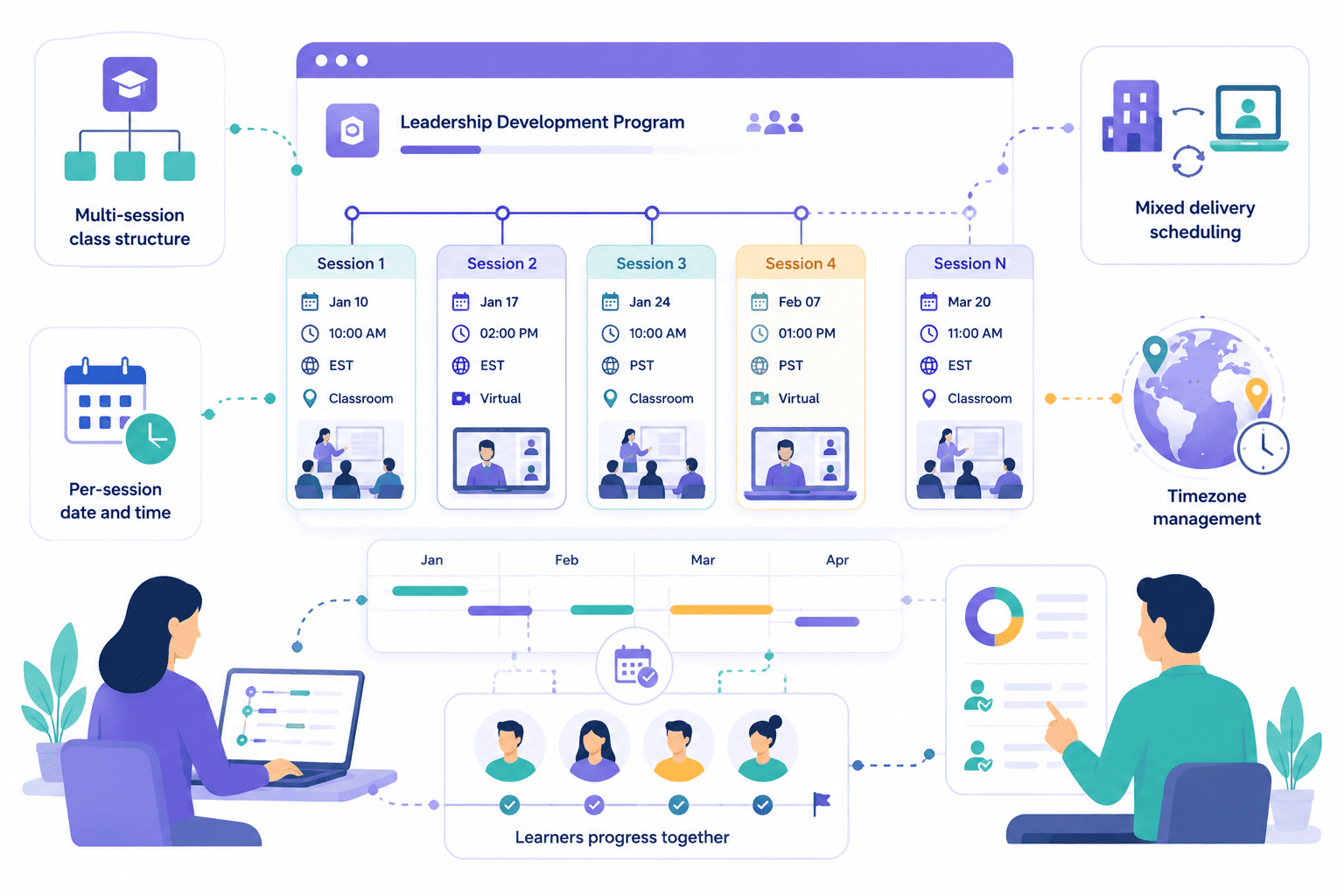
Create Multi-Session Classes Spanning Days, Weeks, or Months
SimpliTrain lets you structure a training program as a single class with as many sessions as your program requires, whether that is two hours across one afternoon or a twelve-week leadership series. Each session is scheduled individually within the class, with its own date, time, timezone, and delivery mode.
You can mix physical and virtual sessions within the same class, so a program does not need to be locked into one format for its entire duration. This makes SimpliTrain the right fit for structured training programs, onboarding cohorts, and compliance curricula that run over extended periods, as well as broader training and development programs for employees.
- Multi-session class structure
- Per-session date and time
- Mixed delivery scheduling
Schedule Virtual and Physical Sessions Without a Separate Tool
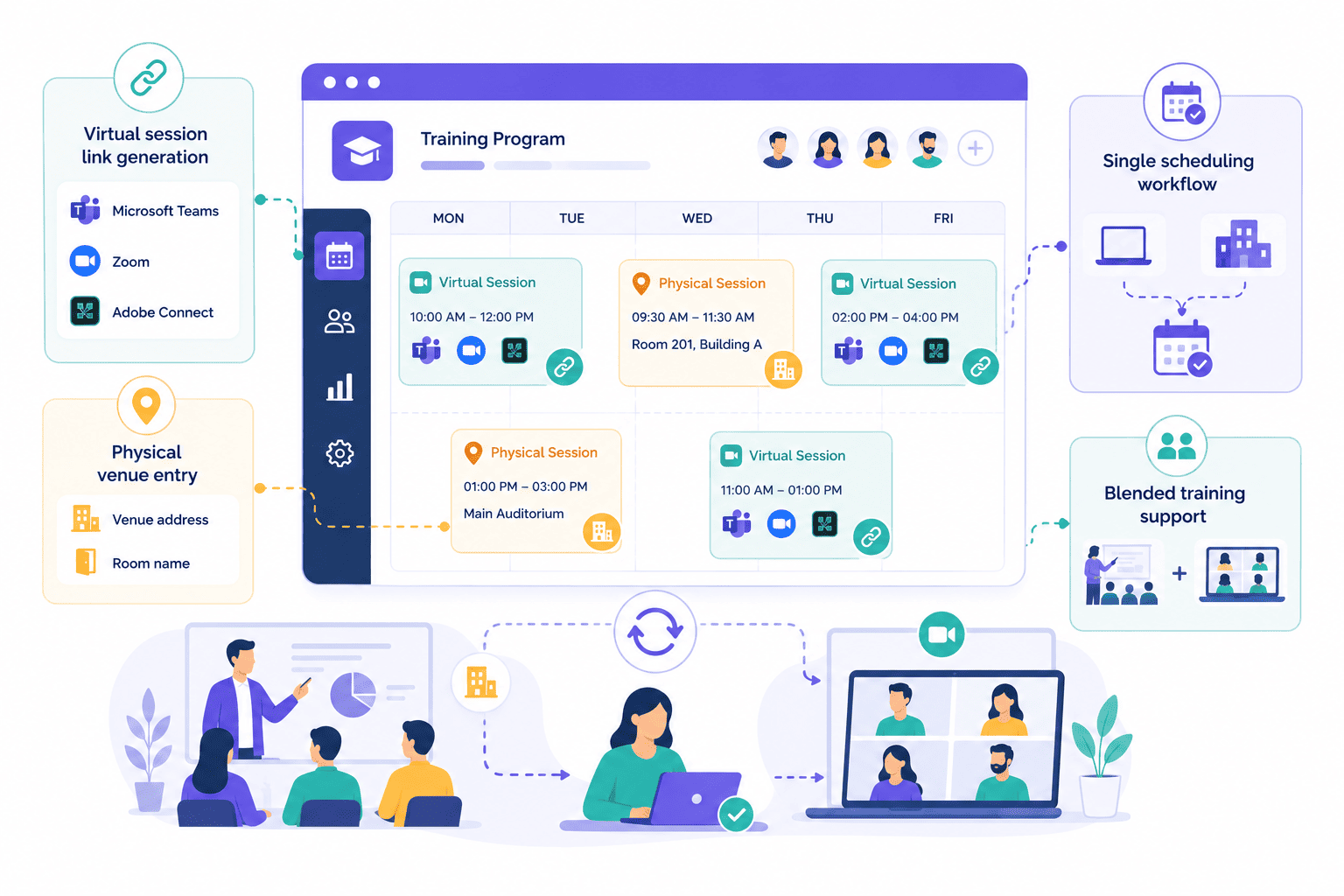
SimpliTrain handles scheduling for both ILT and vILT delivery inside the same workflow, whether your sessions run in a classroom or online. When you create a session as virtual, you connect it to Microsoft Teams, Zoom, or Adobe Connect, and the platform generates the join link automatically for enrolled learners.
When you create a physical session, you add the venue address or room name instead. There is no separate scheduling tool for virtual versus in-room sessions, which removes the coordination gap that causes most ILT scheduling errors.
- Virtual session link generation
- Physical venue entry
- Single scheduling workflow
- Blended training support
Capture Timezone Details for Every Session on Your Schedule
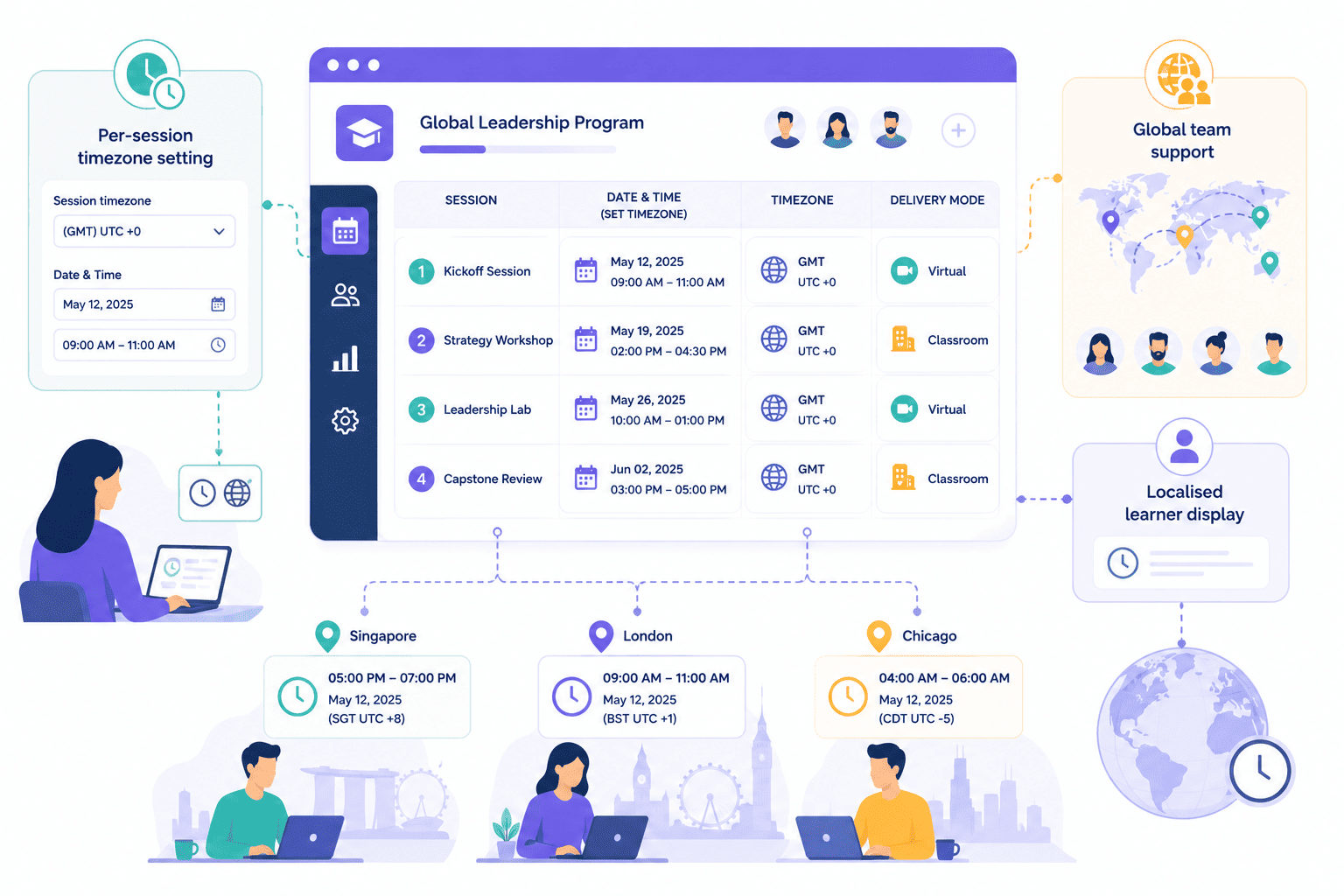
SimpliTrain records timezone information at the session level, so distributed teams always see session times in the correct local context. This matters for global training programs where a session created in GMT needs to display accurately for learners logging in from Singapore or Chicago.
Admins set the session zone once during scheduling, and the platform handles the display for each learner based on their location. This makes SimpliTrain a reliable training administration system for organizations running global or multi-site programs.
- Per-session timezone setting
- Global team support
- Localised learner display
Keep Class Creation and Enrollment as Separate Controlled Steps
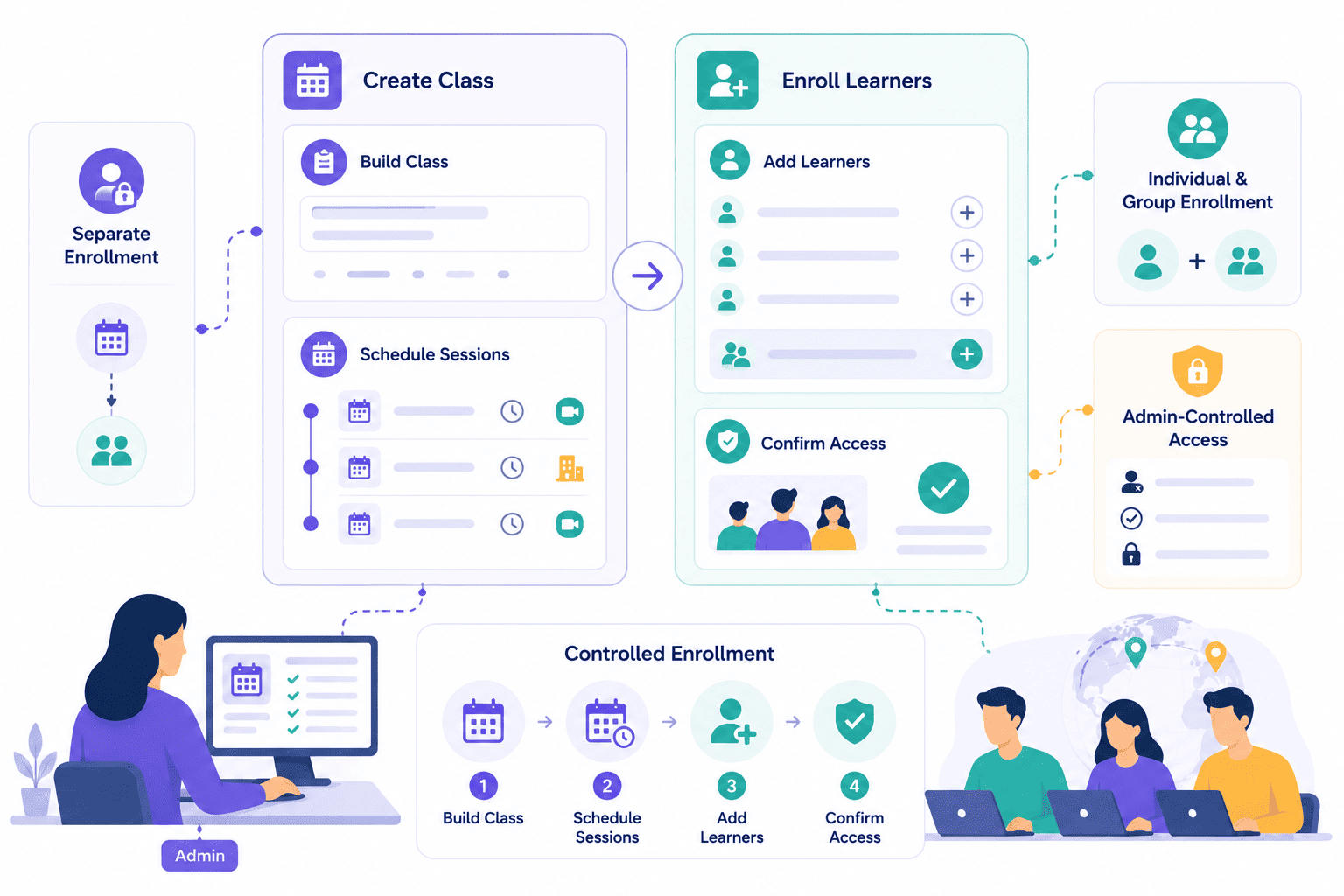
SimpliTrain separates class creation from learner enrollment by design. You build the full session schedule first, then add enrollments as a distinct step for individual learners or groups.
This gives you complete control over who joins a class and when, without auto-enrolling anyone by default.
- Enrollment as separate step
- Individual and group enrollment
- Admin-controlled access
Replace Your ILT Scheduling Spreadsheet With a System That Scales
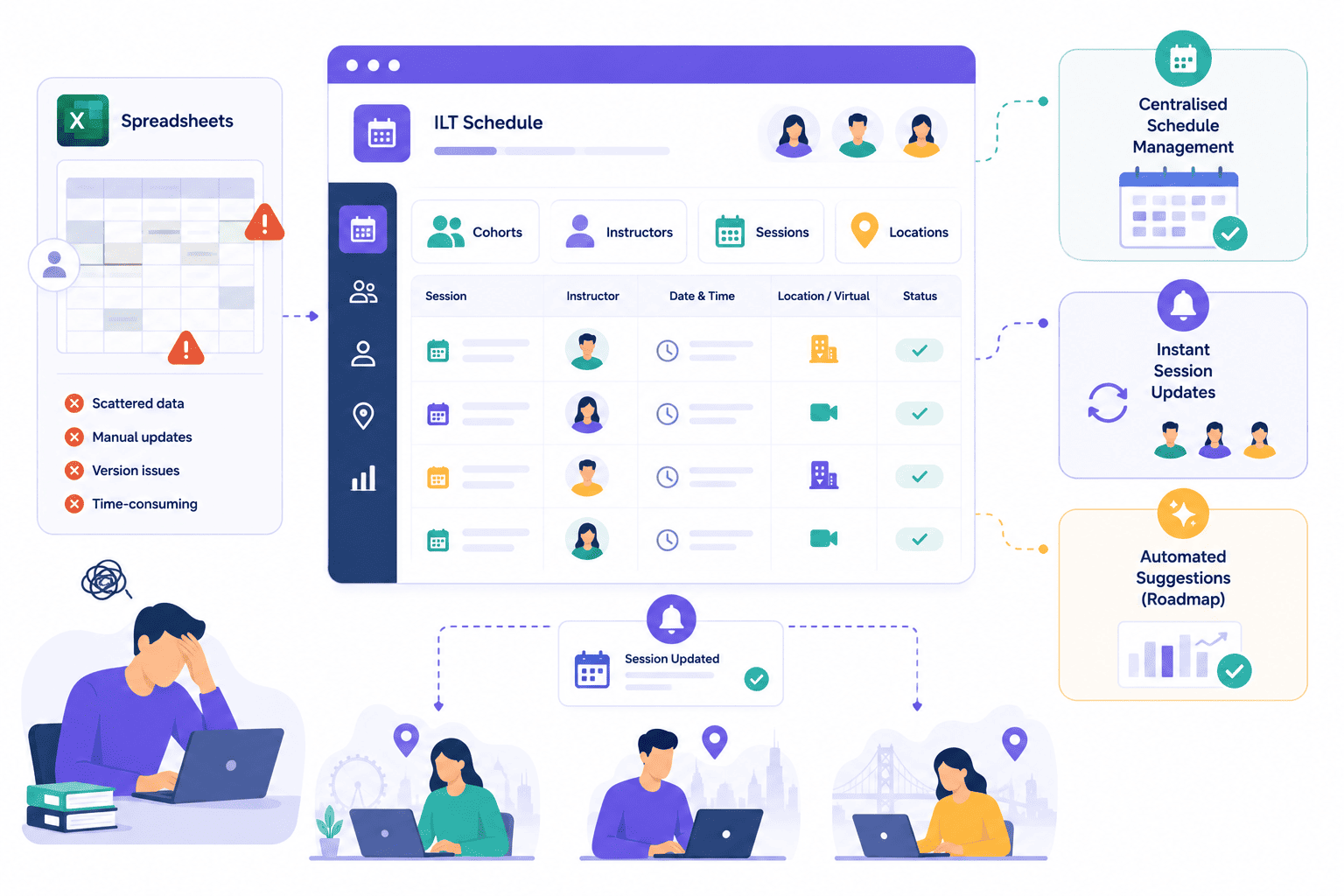
Most L&D teams still manage instructor-led training schedules in Excel, a workflow that breaks down the moment a program runs across multiple cohorts, locations, or time zones. SimpliTrain replaces that process with a structured scheduling system that keeps every session, instructor, and learner record connected in one place.
When a session changes, the update reflects immediately for every enrolled learner without a manual round of email notifications. The SimpliTrain roadmap also includes automated scheduling suggestions, which will further reduce the time your team spends on program logistics.
- Centralised schedule management
- Instant session updates
- Automated suggestions (roadmap)
Schedule Your First Training Session in
SimpliTrain Today!
Frequently Asked Questions
1. How do I create a scheduled session in SimpliTrain?
Start by creating a course, then create a class on top of it and add sessions within that class. Each session captures the date, time, timezone, delivery mode, and either a venue address or virtual conferencing link. Enrollment is added as a separate step after the schedule is set.
2. What session formats does SimpliTrain support for scheduling?
SimpliTrain supports both physical classroom sessions and virtual sessions via Microsoft Teams, Zoom, and Adobe Connect. Both formats are scheduled within the same class creation workflow, and a single class can include a mix of physical and virtual sessions.
3. Which video conferencing tools work with SimpliTrain for virtual session scheduling?
SimpliTrain integrates with Microsoft Teams, Zoom, and Adobe Connect for virtual instructor-led training. When you create a virtual session and connect a conferencing platform, SimpliTrain generates the join link and delivers it to enrolled learners automatically.
4. How does multi-session scheduling work for a long-running training program?
You add individual sessions inside a single class, each with its own date, time, timezone, and delivery mode. A class can contain as many sessions as your program requires, from a single half-day to a months-long series. Assessments and surveys can be attached to any session individually.
5. Is session scheduling included in all SimpliTrain plans?
SimpliTrain uses flat-rate pricing based on admin users with no per-session or per-learner charge. Session scheduling, multi-session class management, and virtual conferencing integrations are all included in the platform. Visit simplitrain.com/pricing for the full plan breakdown.
6. What does a learner see once they are enrolled in a scheduled class?
Enrolled learners see their upcoming sessions in their SimpliTrain dashboard, including the date, time, and either a venue address or a virtual join link. For multi-session programs, all sessions appear in sequence so learners can plan ahead across the full program.
7. Is scheduling and session data stored securely in SimpliTrain?
All session records, enrollment data, and attendance logs in SimpliTrain are stored with role-based access controls. Admins and instructors access only the sessions within their permission scope. Contact SimpliTrain for details on data security practices and compliance standards relevant to your organisation.